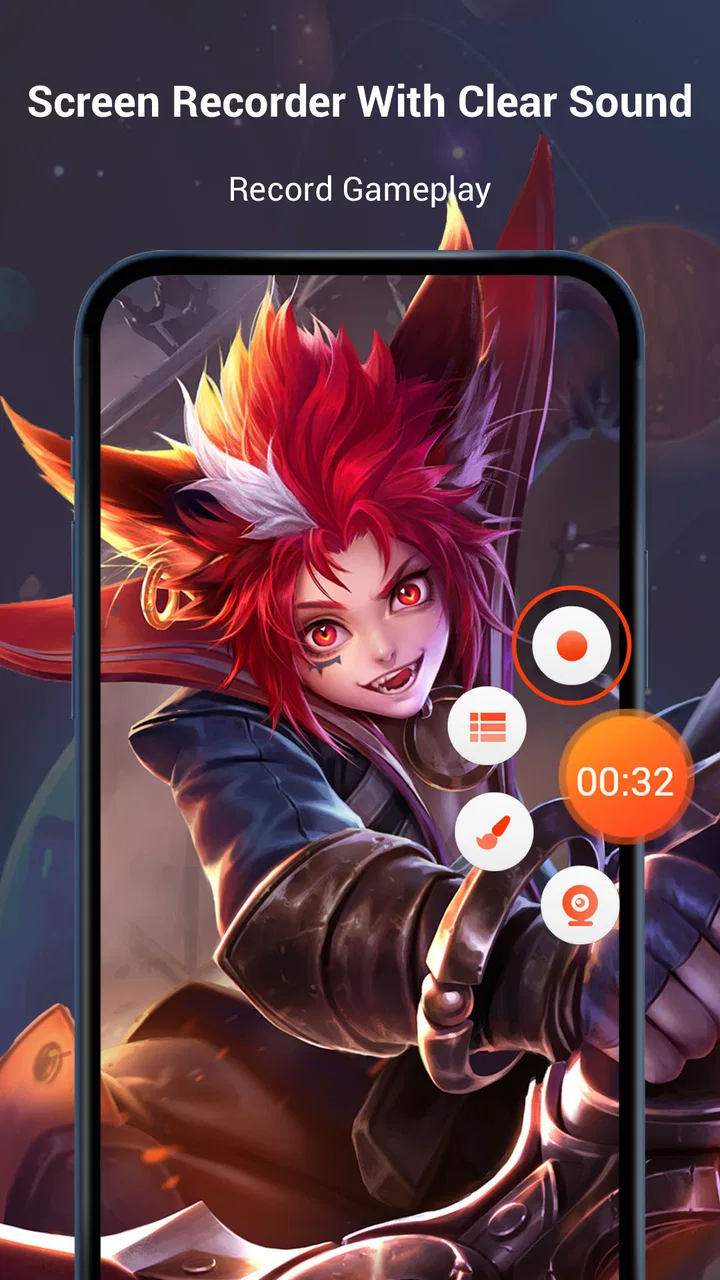
Screen Recorder Video Recorder
- 4.4
- Rating
- 100.00M
- Installs
- Free
- Price

 Analysis by App-foxy
I usually judge a screen recorder by what happens after I press the stop button. Capturing a clip is easy; turning that clip into something useful, shareable, and understandable is where many tools become awkward. Screen Recorder Video Recorder, also known as V Recorder, takes a broader approach. It sits in the video players and editors category, combining screen capture with basic editing, screenshot work, music, and tools aimed at game recording.
In my experience, that makes it more practical than a recorder that simply saves a raw video. I can begin with a game, app demonstration, lesson, or troubleshooting session, then move toward a finished clip without immediately opening a second editor. The app is free to install, and its general audience positioning makes it approachable for casual users as well as people who publish short clips regularly. The important question is whether that convenience fits your workflow better than a simpler built-in recorder or a more specialized editor.
From a blank screen to a finished clip
I like to decide what a recording needs to accomplish before I start: a quick explanation, a game highlight, or a visual sequence made from screenshots. That choice helps me keep the capture short and gives the editing stage a clear target. Next, I’ll look at how that simple workflow holds up when a phone has to record and run demanding content at once.
You May Also Like

 Blood Strike: 2.5 Anniversary
Blood Strike’s Loadouts Turn Every Drop Into a Tactical Gamble
A close look at Blood Strike’s custom loadouts: how fast access to signature weapons reshapes its battle royale rhythm, rewards preparation, and narrows the gap between fights.

 Pandora - Music & Podcasts
Pandora’s Music Is Easy to Start, but Harder to Recover
Pandora’s strength is its low-effort path from a seed to a station. Its weak spot is how much confidence it asks you to place in connection, setup, and quiet recovery.

 8 Ball Pool
 Is Built on Rivalries, Rematches, and Routine
A close look at the rivalries, rematches, shared routines, and unanswered safety questions that turn a quick pool match into a persistent mobile community.

 Samsung Music
’s Quiet Strength Is Playing What You Already Own
Its reach comes less from spectacle than from dependable access to a personal library. That simplicity is both the app’s strongest retention engine and its ceiling.

 AccuWeather: Weather Radar
AccuWeather Review: A Quick, Clear Forecast for Everyday Decisions
For everyday plans, the best forecast is the one you can understand quickly. AccuWeather makes rain timing, radar, and local conditions easy to act on, with a few trade-offs.

 Hill Climb Racing
Why Hill Climb Racing Still Turns Crashes Into One More Run
A tiny car, a bumpy hill and one more upgrade: Hill Climb Racing keeps resurfacing because its simple chaos makes every near-miss feel personal.
More From Our News Desk
View All News


Choosing the right starting point
The most useful way to approach V Recorder is to decide what the final result should be before recording. If I only need to show a family member how to change a setting, I want the shortest path from screen to shareable clip. If I am capturing a game moment, I care more about sound, timing, and trimming away the waiting before and after the action. If I am making a small tutorial, I need a cleaner handoff from recording to editing so the viewer is not forced to watch every pause.
That distinction matters because a screen recorder can produce a technically correct file that is still unpleasant to watch. V Recorder is strongest when I treat it as a small production workflow rather than a single-purpose capture button. Its store summary emphasizes recording games with sound, capturing the screen, and editing screenshots with music, so its appeal is clearly broader than saving untouched screen activity.
The app comes from VIDEOSHOW Video Editor & Maker & AI Chat Generator, a developer name that connects it to a wider editing-oriented identity. I would not install it expecting a full desktop editing suite on a phone. I would install it when I want capture and quick finishing tools in one mobile workspace, especially when opening several separate apps would slow me down.
Recording a real everyday scenario
Imagine that I am helping someone solve a problem in a mobile app. I start the recorder, reproduce the action, and stop once the useful sequence is complete. The raw recording may include a few seconds of preparation, a mistaken tap, or a pause while I find the next screen. Those small imperfections are exactly why the editing stage matters. Instead of sending a long, unedited capture, I can shape the material into a short explanation.
For a game clip, the starting condition is different. I may want the sound of the game to remain part of the moment, and I may not know in advance how long I will play before something worth keeping happens. In that situation, a recorder that also supports quick editing is more convenient than moving the file to a separate editor immediately. The trade-off is that mobile recording still depends on the phone handling the game and capture process together, so I would test the setup before relying on it for an important session.
Keeping the recording focused
My first practical tip is to prepare the screen before recording rather than trying to repair everything afterward. Close unrelated pages, position the game or app at the exact starting point, and decide whether the clip needs sound. This reduces the amount of trimming and makes the final handoff easier. A recorder can only preserve what appears during capture; it cannot turn a distracted sequence into a focused explanation without extra work.
I also prefer short recordings when the goal is communication. A brief demonstration is easier to review, edit, and send than one long file containing several attempts. For game footage, longer capture can make sense, but I would still stop between meaningful sessions instead of creating one enormous timeline. That approach leaves me with smaller pieces that are easier to identify and refine.
Moving from capture into editing
This is where V Recorder earns its place on my phone. The capture is not the final product, and the app gives the workflow a natural next step: take the screen material and improve it before sharing. Trimming is especially valuable for removing the waiting period at the beginning and the accidental taps at the end. Even a few clean cuts can make a tutorial feel intentional rather than improvised.
The same logic applies to screenshots. Sometimes a still image explains a setting or result better than a video. The app’s editing focus includes screenshots with music, which points toward lightweight visual posts or simple image-based creations rather than only conventional screen recordings. I would use that route for a quick visual update, a step-by-step image, or a short presentation where movement is not necessary.
The hidden strength is the handoff between capture and cleanup. Many people compare recorders by asking whether they can save a video, but the time saved afterward is often more important. Keeping the material inside one app reduces the chance that I forget which file belongs to which session or lose momentum while switching tools.
Handling sound without creating a messy result
Sound is one of the first things I would check before recording something important. A game clip can feel empty without its audio, while a tutorial can become confusing if the sound competes with the explanation. I would make a short test capture, play it back, and listen before committing to a longer session. That small test is more useful than assuming the final recording will sound exactly as intended.
There is also a difference between recording sound and using music during editing. Game audio can help preserve the original moment, but added music can change the mood of a screenshot sequence or short montage. I would avoid adding music simply because the option exists. For instructions, quiet or no added music usually keeps attention on the actions. For a casual visual clip, music may make the result feel more complete.
This is an important trade-off for beginners: adding more layers does not automatically make a clip better. The app makes quick creation possible, but good results still depend on restraint. I would keep the original purpose visible and remove anything that distracts from it.
Preparing the handoff to another person
Once the clip is edited, I think about who will receive it and what they need to understand immediately. A friend who asked how to use an app needs a direct sequence, not a long recording of me searching through menus. Someone watching a game highlight wants the action to begin quickly. A screenshot-based post may need a clear visual order so the viewer knows where to look first.
That is why I would review the finished material once before sharing it. I check the opening, the ending, the readability of the important screen, and whether the sound helps or hurts. This review step is easy to skip when the editor is convenient, but it is the difference between “I recorded this” and “this explains or entertains something.”
V Recorder works well for this middle ground. It is more capable than a basic recorder that leaves every correction to another app, but it is less intimidating than a large editor designed around many tracks and detailed controls. For a quick mobile handoff, that balance is useful.
What the finished result feels like
The result I expect from this app is a practical, polished-enough mobile clip rather than a highly produced film. That is not a criticism; it defines the audience. I can capture an app process, remove dead space, shape a game moment, or turn a screenshot into a more presentable visual without building a complicated project.
For casual creators, this can be enough to maintain a consistent routine. Record, clean up, check the sound, and share. The fewer transitions between apps, the more likely I am to finish the task instead of leaving the raw file in storage. That convenience is particularly valuable when I am making something for one person rather than producing a large public project.
The app has reached over one hundred million installs and holds a 4.4 average from around one point seven million ratings, which suggests that this straightforward capture-and-edit approach has broad appeal. Those figures do not replace personal testing, but they do help explain why the app is familiar to so many Android users.
Where the workflow starts to break
The first limitation is that an all-in-one mobile tool can feel less precise than a dedicated editor. If I need detailed audio mixing, elaborate transitions, careful color work, or a complex multi-layer project, I would rather move the recording into a specialist editor. V Recorder is convenient because it keeps the path short; that same simplicity can become restrictive when the project grows.
The second limitation is the nature of screen recording itself. A phone is handling the original app or game and the recording process at the same time. On demanding sessions, I would be cautious about assuming that every long capture will be equally smooth. A short test is sensible, especially before recording a rare game event or an important demonstration.
The third issue is editing discipline. Because the app makes it easy to capture, I could quickly accumulate clips that are poorly named, too long, or only partly useful. The tool helps me finish a recording, but it does not remove the need for an organized workflow. I get better results when I decide the purpose first and delete unnecessary material during the editing pass.
There is also a cost consideration. The app is free, but optional in-app purchases range from ninety-nine cents to one hundred seventy-nine dollars and ninety-nine cents per item. I would therefore check what is included in the free experience before building a regular workflow around a particular premium tool. The wide range means different optional items may target very different levels of use, so I would avoid assuming that every editing convenience is part of the no-cost setup.
Who should use it, and who should look elsewhere
I would recommend V Recorder to someone who wants to record a game, capture an app tutorial, or make a quick visual clip and then perform basic cleanup without immediately learning a large editor. It is also a good fit for people who frequently send screen explanations to friends, family, classmates, or colleagues. The workflow is especially appealing when speed and simplicity matter more than elaborate production control.
I would be more cautious about recommending it to a creator who already has a precise editing system or needs advanced control over every part of a project. In that case, the built-in editing path may feel like an extra stop rather than a shortcut. I would also choose a different option if my main requirement were only occasional screen capture and my phone already offers a recorder that handles that job cleanly. Installing another app is not automatically worthwhile when the built-in route meets the need.
The age rating is Everyone, which fits the app’s general-purpose role, but that should not be confused with a promise that every recorded clip is suitable for every audience. The content comes from whatever appears on the screen, so I still decide what to capture and share.
Small habits that improve the outcome
I found three habits particularly useful. First, I record a short test whenever sound matters. Second, I make the opening purposeful by beginning close to the action instead of relying on heavy trimming later. Third, I watch the final clip as a recipient would, not as the person who already knows what happened. These habits cost almost no time and make the app’s quick workflow noticeably more reliable.
For screenshot projects, I would choose a consistent order before adding music. A visual sequence can become confusing if the images jump between unrelated steps. For game footage, I would preserve the strongest moment and remove repetitive lead-in material. For tutorials, I would favor clarity over decoration. These choices make better use of the app’s tools than simply applying every available option.
I would also keep the original capture until I am satisfied with the edited version. A trimmed clip may look correct at first but reveal a missing step or an abrupt ending during playback. Keeping the source gives me a way back without repeating the entire recording. That is a simple workflow safeguard, especially when the original action is difficult to reproduce.
My final take after using the workflow
Screen Recorder Video Recorder succeeds because it treats screen capture as the beginning of a task, not the end. I can start with a game, an app demonstration, or a screenshot, then move toward a cleaner result in the same general workspace. The experience is most convincing when I need something quick, understandable, and ready to pass to another person.
It is not the tool I would choose for a demanding production pipeline, and I would test sound and performance before trusting a long recording. I would also pay attention to optional purchases rather than assuming every convenience is free. Still, for everyday mobile capture, the combination of recording and lightweight editing is genuinely useful.
The current version is 8.2.2.3 and it supports Android 5.0 or later, making it accessible across a wide range of Android devices. With its free entry point, Everyone rating, and established presence, I see it as a sensible choice for casual creators and practical screen-sharing tasks. If your goal is to capture something, clean it up, and hand it off without turning the job into a full editing project, this is an app I would recommend trying.
FAQs for Screen Recorder Video Recorder
01What features does Screen Recorder Video Recorder offer?
Screen Recorder Video Recorder provides a variety of features including high-definition video recording, audio capture, and a user-friendly interface. Users can annotate recordings with text and drawings, and the app supports both front and back camera recording. It also includes video editing tools like trimming and cropping for quick edits.
02Is Screen Recorder Video Recorder free to use?
The app is free to download and use, offering a wide range of features at no cost. However, it also includes optional in-app purchases to unlock advanced features such as watermark removal, premium video editing tools, and additional storage options for avid users.
03Does Screen Recorder Video Recorder affect device performance?
While the app is optimized for performance, recording high-definition videos can be resource-intensive. Users with older devices might experience some slowdown or increased battery usage. It is advisable to close background apps and ensure sufficient storage space for optimal performance.
04Is the app secure and does it protect my privacy?
Screen Recorder Video Recorder prioritizes user privacy by not collecting personal data or recordings without consent. The app requires permissions to access your device’s microphone and storage but uses these strictly for recording purposes. Always download updates to ensure you have the latest security features.
05Can I share my recordings directly from the app?
Yes, the app allows you to easily share your recorded videos directly to social media platforms, email, or cloud storage services. After editing, simply choose the share option and select your preferred method to distribute your content seamlessly.
Pros
- Easy-to-use interface for quick recording.
- Supports high-quality video output.
- Includes built-in editing tools.
- Allows live streaming to social platforms.
- No watermark on recorded videos.
Cons
- Ads can be intrusive during use.
- Consumes significant battery power.
- Limited features in free version.
- Some features require in-app purchases.
- Occasional crashes on older devices.

Screen Recorder Video Recorder
Gallery